📚 Documentation
Complete guide to installing, configuring, and using PTR-Tracker and PTR-SNIPER — the elite prop trading toolkit for Quantower.
👋 Introduction
SniperFlow.ai delivers two Quantower plugins built specifically for serious prop traders managing multiple funded accounts.
📊 PTR-Tracker
Visual P&L calendar, portfolio manager, risk lockout, trading journal, payout milestones, and expense tracking in one panel.
🎯 PTR-SNIPER
AI signal engine with 6 setups, 4-factor Market Radar, auto entries, adaptive trailing stop, news filter, and prop firm safety gate.
🔑 One License Key
Your license key activates instantly and is tied to your email. Manage everything at sniperflow.ai/portal.
🔄 Auto-Updates
New features ship automatically. No reinstall needed — just restart Quantower after an update notification.
💻 System Requirements
| Requirement | Minimum | Recommended |
|---|---|---|
| Operating System | Windows 10 | Windows 10 / 11 |
| Quantower Version | 1.130+ | Latest version |
| RAM | 4 GB | 8 GB+ |
| Internet | Required for activation | Stable broadband |
| Broker | Any Quantower-compatible | Rithmic / Tradovate |
PTR-Tracker ships as a standalone Desktop App (runs on its own — no Quantower needed) and as a Quantower Plugin. The Quantower Version row above applies to the plugin only. NinjaTrader support is coming soon.
🚀 Installation
PTR-Tracker comes in two versions and your license works with either one — you only need to install one, not both. The Desktop App runs on its own; the Quantower Plugin runs inside Quantower. Pick whichever you prefer.
The Desktop App and the Quantower Plugin are two ways to run the same product. Your license activates on either one, so just install the version you like and skip the other.
💻 Method A — Desktop App (Standalone)
Get the standalone Windows installer — no Quantower required. This is the same download that's in your setup email.
📥 DOWNLOAD DESKTOP APP (.EXE)Download the Installer
After purchase, use the download button above (or the link in your setup email) to get PTR-Tracker Setup.exe.
Run the Installer
Double-click the .exe. If Windows SmartScreen appears, click More info → Run anyway — the installer is safe, it's just not code-signed yet.
Launch PTR-Tracker
Open the app from your Start menu or the desktop shortcut the installer creates. No Quantower required.
Activate
Enter your license key on first launch (see License Activation) and you're in.
🧩 Method B — Quantower Plugin
Download the Plugin
After purchase, check your email for the download link. Download the PnLCalendar plugin (ZIP/DLL).
Locate Your Quantower Plugins Folder
Navigate to:
C:\Quantower\Settings\Scripts\plug-ins\Copy the Plugin Folder
Extract and paste the PnLCalendar folder into the plug-ins folder.
Restart Quantower
Close and reopen Quantower. The PTR-Tracker panel will appear in your available panels list.
Open the Panel
Go to View → Panels → PnL Calendar or search "PnL" in the panel search bar.
Pin the panel to your workspace layout so it opens automatically every time you launch Quantower.
🔑 License Activation
Find Your License Key
Your key was emailed after purchase. It looks like:
XXXX-XXXX-XXXX-XXXXOpen Activation Prompt
First launch of PTR-Tracker shows the activation screen automatically.
Enter Your Key
Paste your license key and click Activate. The plugin validates against Cloudflare D1 in real time.
Done
Full access unlocks immediately. Your key is now bound to this machine (up to 2 activations per license).
Each license activates on up to 2 computers. To transfer to a new machine, contact support@sniperflow.ai for a machine reset.
⚡ Quick Start
1. Connect Your Broker
Make sure your Quantower broker connection (Rithmic, Tradovate, etc.) is active and authenticated before opening PTR-Tracker.
2. Add Your First Account
In the Portfolio tab, click + Add Account. Enter your account name, prop firm, account size, and profit split. Select the matching Quantower connection.
3. Start Trading
PTR-Tracker automatically pulls P&L from your live connection. The calendar populates in real time as you trade.
Green cells = profit days. Red cells = loss days. Intensity scales with the dollar amount. Weekly totals show in the rightmost purple column.
📊 P&L Calendar
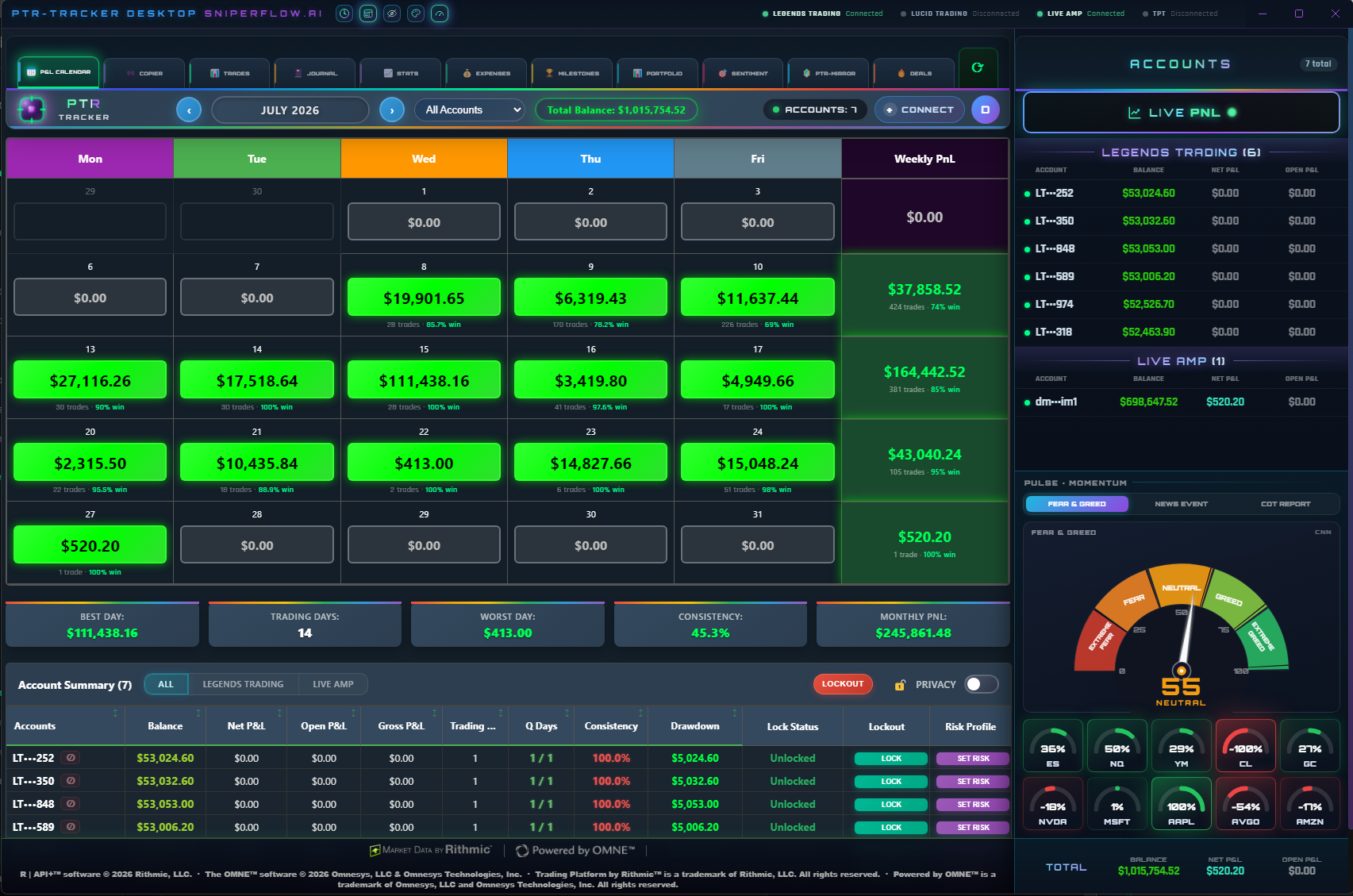
The main panel. Shows your full trading month at a glance with color-coded daily P&L, week totals, and five key stats at the bottom.
Calendar Controls
| Control | Function |
|---|---|
| ◀ / ▶ Arrows | Navigate months |
| Account Dropdown | Filter by account or view all combined |
| Total Balance | Live balance across selected accounts |
| REFRESH | Force pull latest P&L from broker |
Bottom Stats Bar
| Stat | Description |
|---|---|
| Best Day | Highest single-day profit this month |
| Trading Days | Days with at least one trade |
| Worst Day | Largest single-day loss |
| Consistency | No single day exceeds X% of total profit (prop firm rule) |
| Monthly PnL | Net profit/loss for the month |
💼 Portfolio Manager
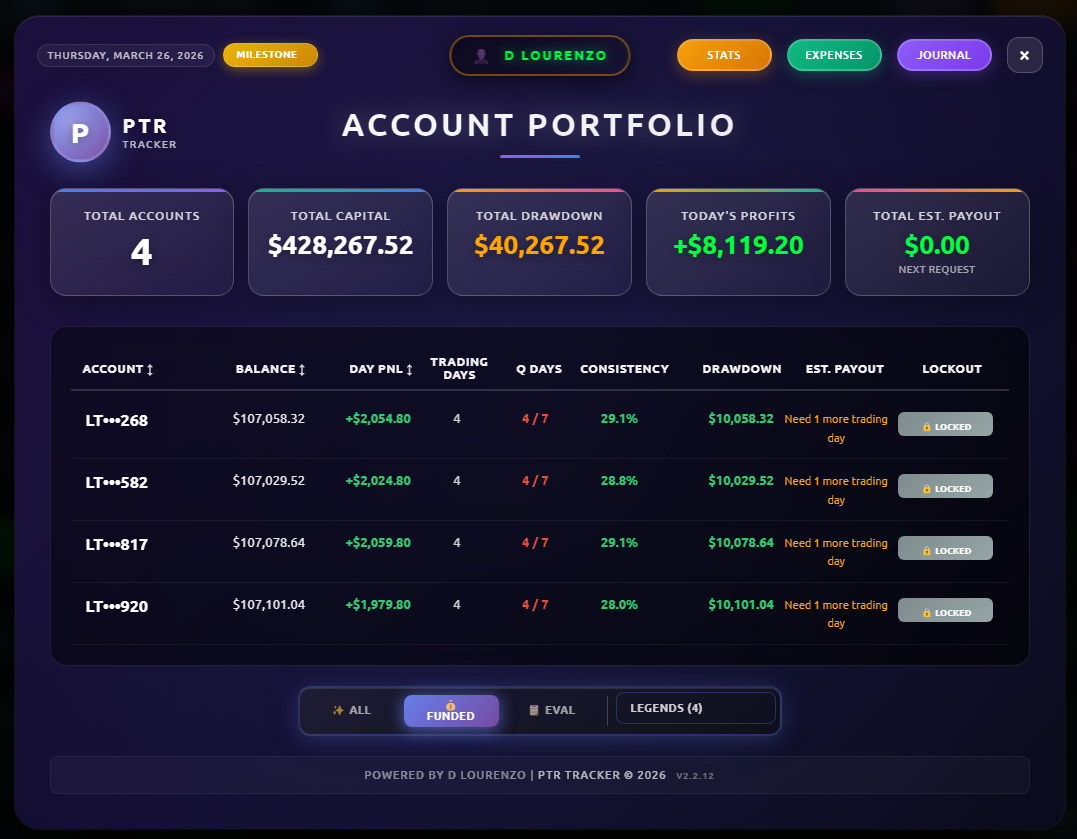
Manage all your prop accounts from one table. Tap any row to drill into account-level detail.
- Total Accounts — count of all tracked accounts
- Total Capital — combined account balances
- Total Drawdown — aggregate drawdown across all accounts
- Today's Profits — live intraday P&L
- Est. Payout — estimated payout based on profit split
- Q Days — qualifying days progress toward payout eligibility
- LOCK button — instantly lock an account from trading
🪞 Trade Copier
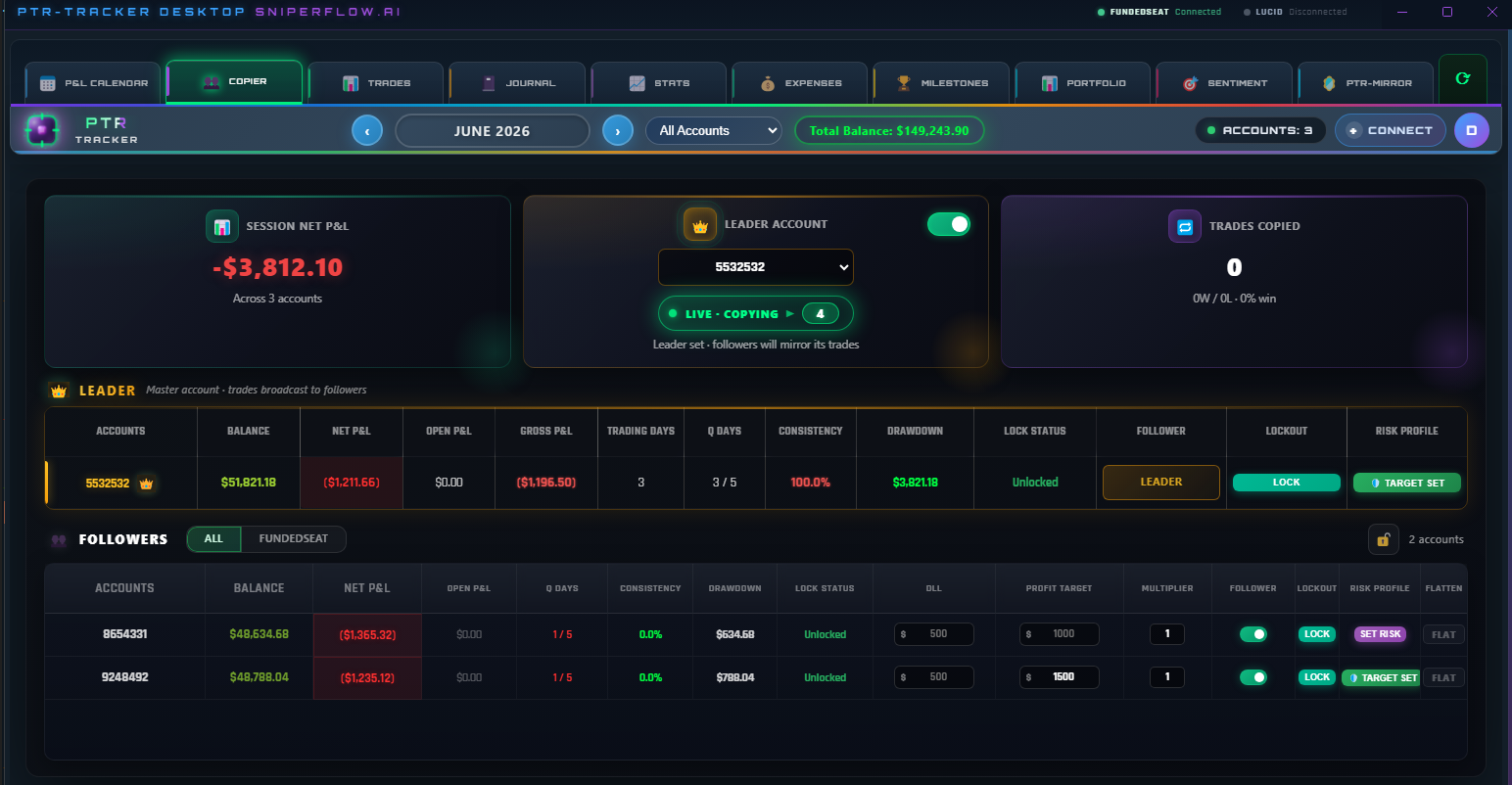
Mirror your trades across multiple prop-firm accounts in real time. Group a leader account with one or more followers on the same machine, scale position size by a quantity multiplier, and stay synced from entry through exit.
How It Works
- Leader account — the account you actively trade. Every fill is broadcast to its followers.
- Follower accounts — automatically replicate the leader's entries, exits, and bracket orders.
- Quantity multiplier — scale each follower up or down (1×, 2×, 0.5×) to match its account size.
- Group-based — build multiple leader/follower groups and enable them independently.
The copier mirrors accounts connected within the same Quantower instance in real time. Keep all copied accounts logged in and connected for uninterrupted syncing.
📈 Analytics & Stats
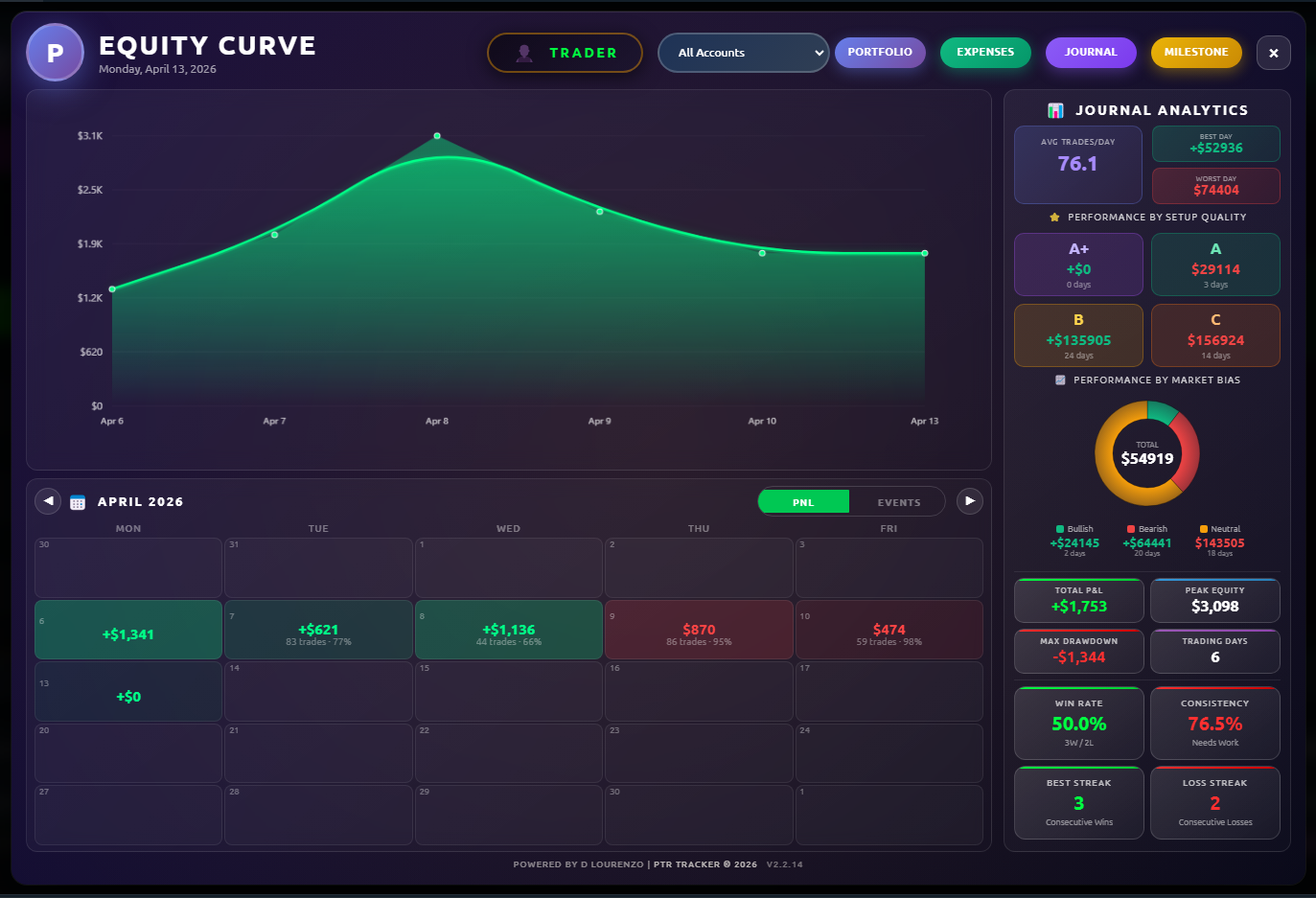
Access via the Stats button in the portfolio header. Shows equity curve, win rate, profit factor, consistency score, and streak data.
| Metric | Description |
|---|---|
| Win Rate | % of profitable trading days |
| Profit Factor | Gross profit ÷ gross loss |
| Consistency | Max single day as % of total — lower is better for prop firms |
| Avg Win / Loss | Average profit vs average loss per day |
| Max Win Streak | Longest consecutive green days |
📓 Trading Journal
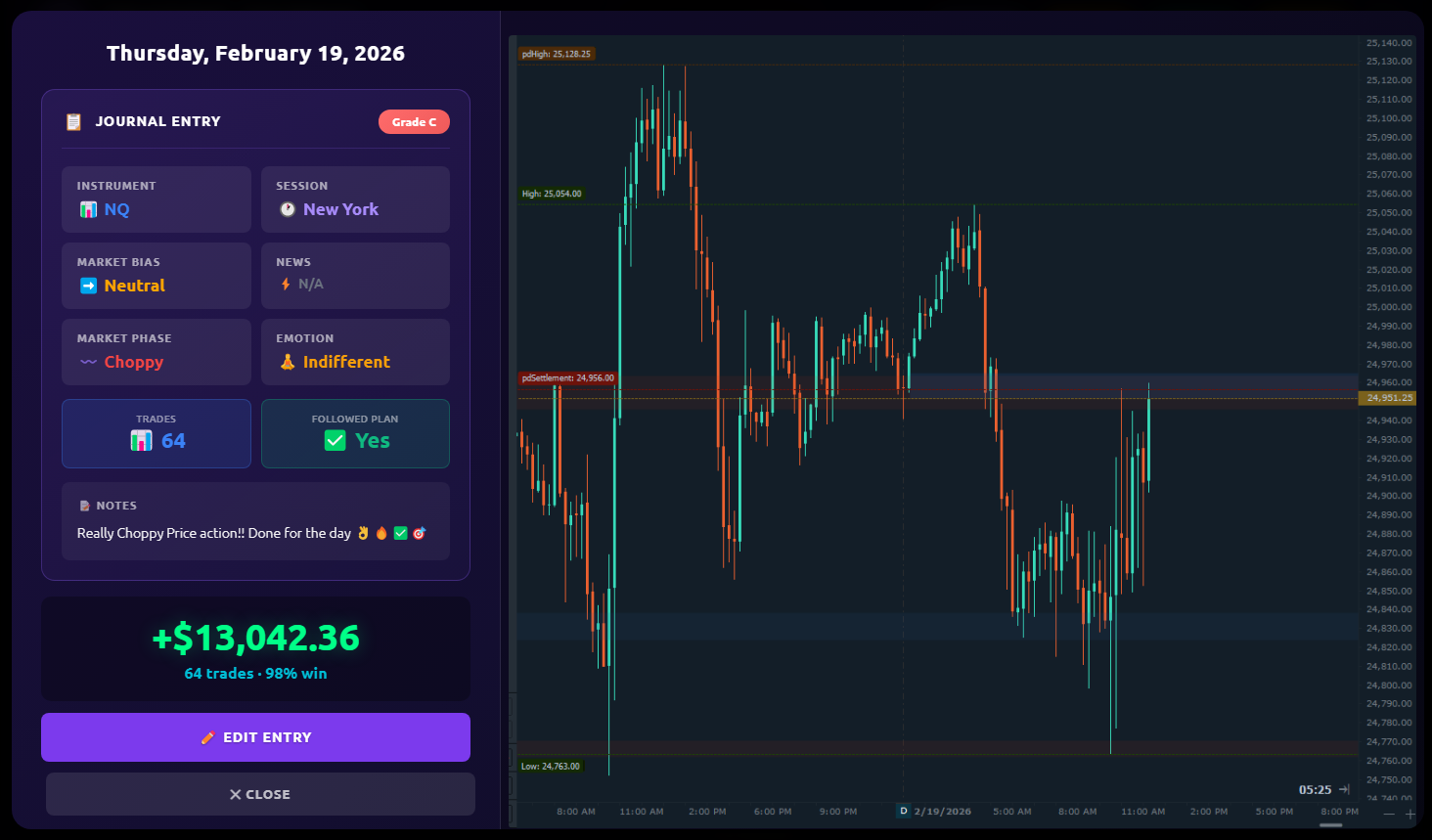
Scalper-optimized daily summary journal — no individual trade logging required. Rate your day, note conditions, attach chart screenshots.
Entry Fields
- Instrument — NQ, ES, MNQ, etc.
- Session — New York, London, Asian
- Market Bias — Bullish, Bearish, Neutral
- News Tier — 1, 2, 3 impact level
- Market Phase — Trending, Choppy, Ranging
- Emotion — Disciplined, Fearful, Overconfident, etc.
- Grade — A/B/C/D/F for your setups and execution
- Notes — free text
- Chart Screenshot — drag & drop or paste from clipboard
Even a 30-second entry per day builds a data set that reveals your real edge over time. Grade B days often show your most repeatable setups.
🔒 Risk Lockout
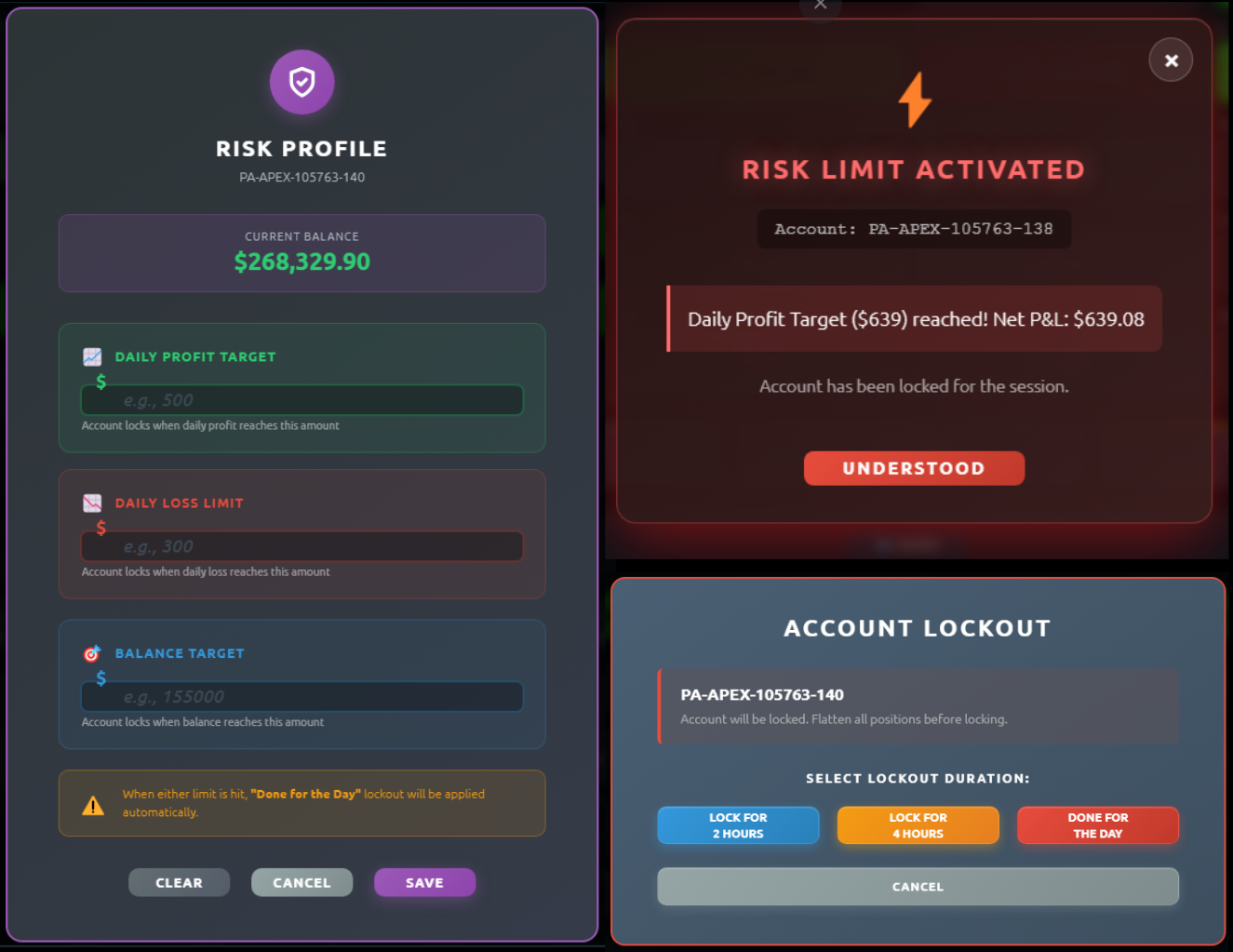
Set hard limits that lock your account when hit. Prevents revenge trading and protects funded account rules.
Lock Triggers
- Daily Profit Target — lock when you hit your goal (prevents overtrading a good day)
- Daily Loss Limit — lock when drawdown reaches threshold
- Balance Target — lock when account reaches a specific balance
- Manual Lock — instant lock with duration selector (2hr / 4hr / Done for Day)
The lockout is a visual and notification system. For full discipline enforcement, close Quantower or step away when locked.
🏆 Payout Milestones
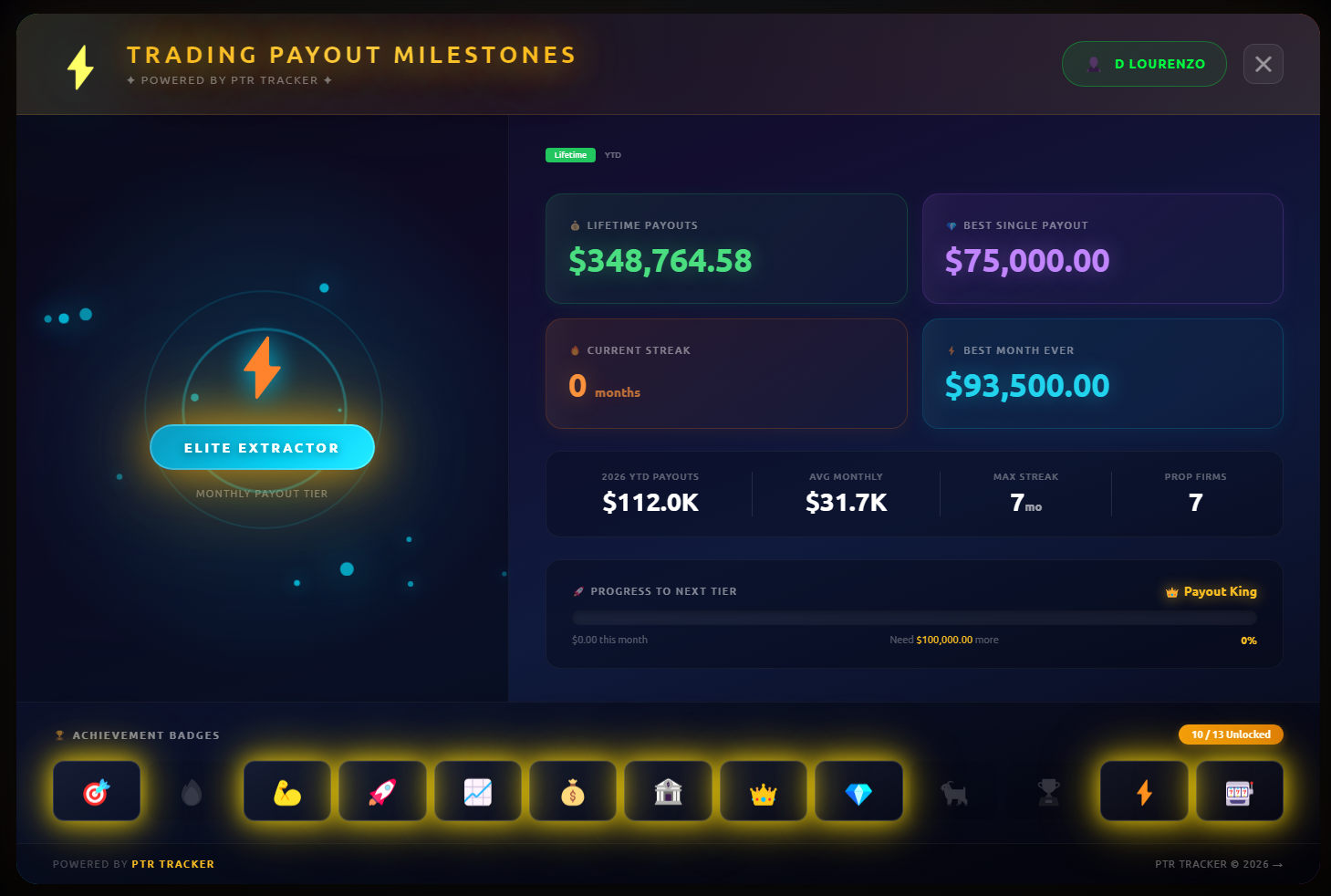
Gamified tier system tracking your lifetime payout journey. Rise from Funded & Dangerous through Money Maker to Payout King.
| Tier | Total Payouts |
|---|---|
| Funded & Dangerous | $0 – $9,999 |
| Money Maker | $10,000 – $24,999 |
| Consistent Casher | $25,000 – $49,999 |
| Elite Trader | $50,000 – $99,999 |
| Payout King | $100,000+ |
Unlock 13 achievement badges along the way. Badges persist across account resets.
🧾 Expense Tracker
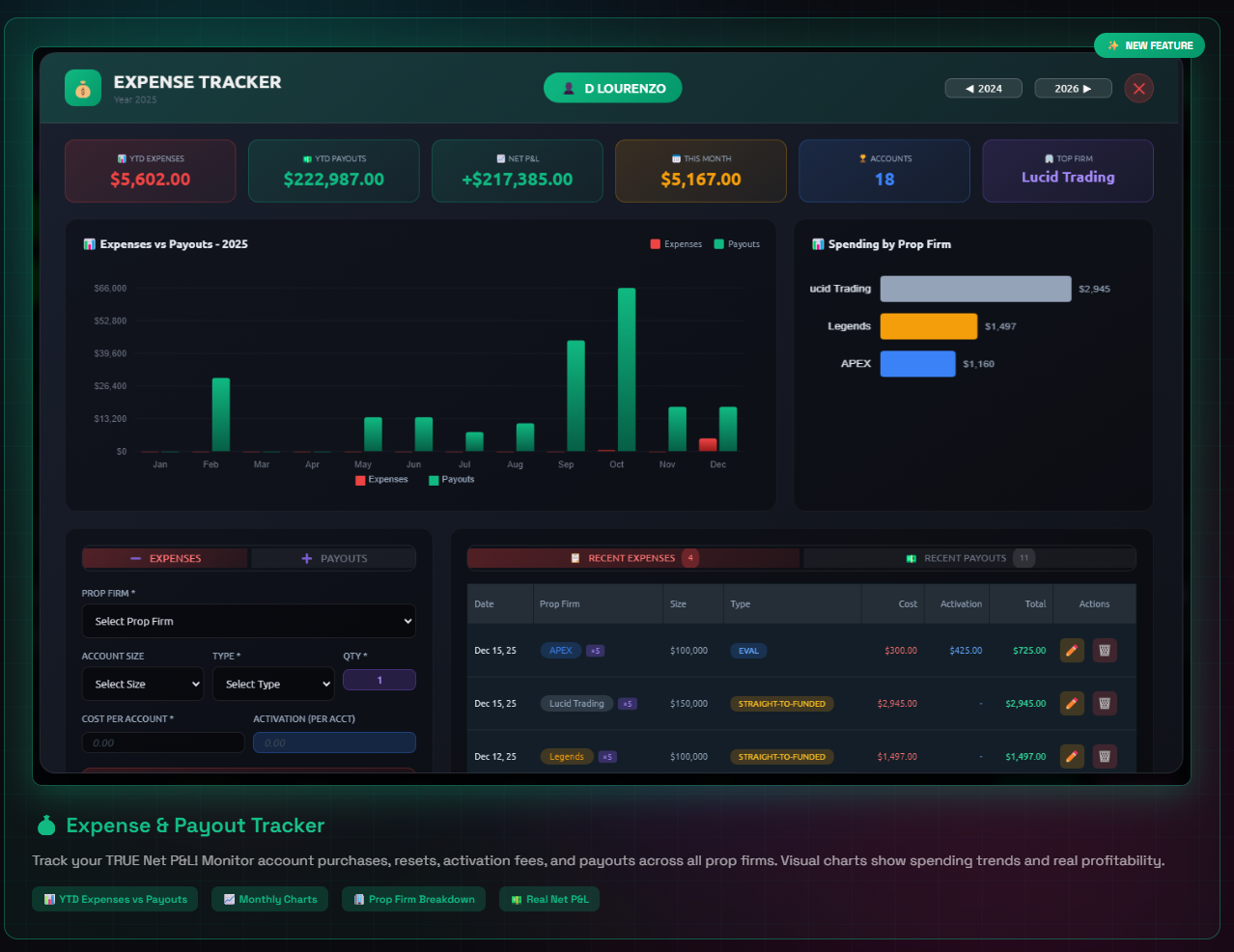
Track every eval purchase, subscription, and activation fee against your payouts to see your true net P&L.
- Log expenses by prop firm, account size, and type (EVAL / STF / MONTHLY)
- YTD Expenses vs Payouts bar chart
- Spending by Prop Firm breakdown
- True Net P&L = Total Payouts − Total Expenses
🧭 Market Sentiment
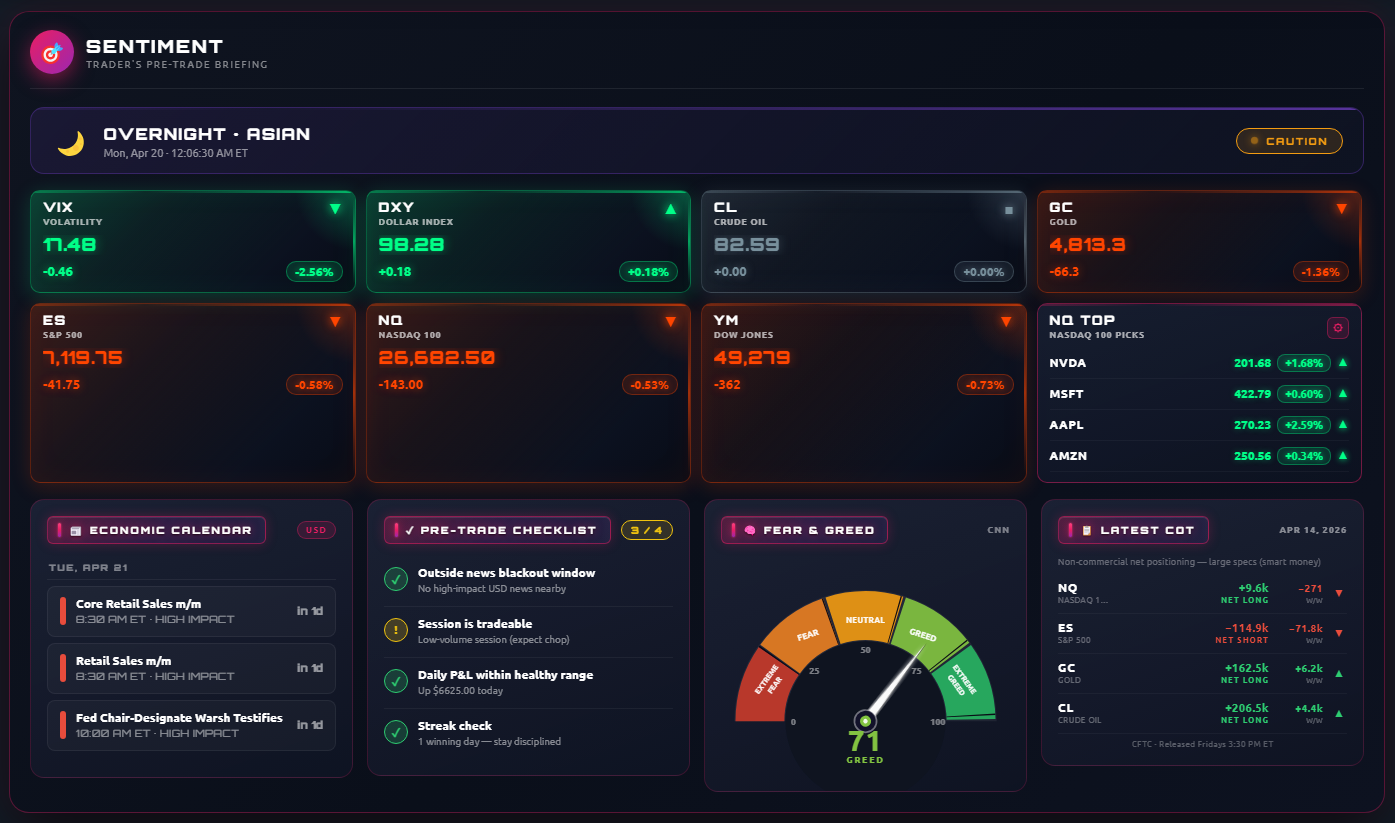
Read the room before you click. The Sentiment panel is your pre-trade briefing — aggregated macro bias, VIX pulse, dollar-index (DXY) context, upcoming economic events, and session context rolled into one view so you know what side the market wants before the open.
| Signal | What It Tells You |
|---|---|
| Macro Bias | Aggregated directional lean across the major index futures |
| VIX Pulse | Volatility regime — calm, elevated, or risk-off |
| DXY Context | Dollar-index strength and its pressure on risk assets |
| Event Risk | High-impact economic events on today's calendar |
📡 Pulse Indicator
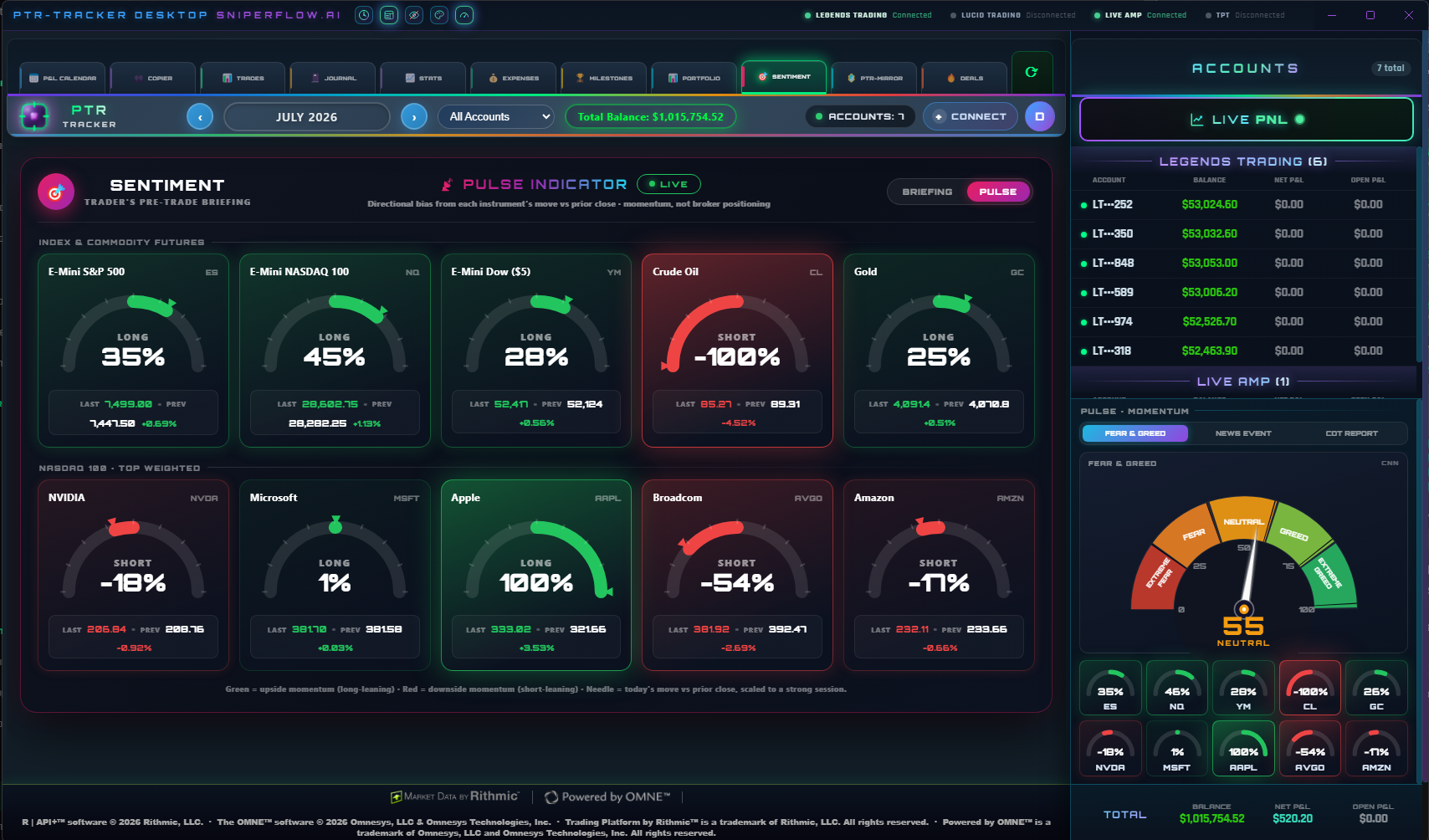
Toggle from Briefing to Pulse for a live momentum read on every instrument. Each gauge shows the directional bias of that symbol’s move versus the prior close — green leans long, red leans short, and the needle scales with how strong today’s move is. It spans the index and commodity futures plus the top-weighted NASDAQ names, so you can see where momentum actually sits before you take a trade. This is momentum, not broker positioning.
Check the Sentiment briefing before the session opens. It frames the day's bias so you're trading with context, not guessing.
📶 PTR-SNIPER — Signal Panel
PTR-SNIPER requires an active PTR-Tracker license. It adds a proprietary signal engine panel that fires NQ/MNQ entry alerts across 6 classified setup grades (A through F), ranked by conviction level.
| Setup | Conviction Level |
|---|---|
| A-SETUP | Highest — primary signal |
| B-SETUP | High — strong secondary signal |
| C-SETUP | Moderate — confirmed entry |
| D-SETUP | Moderate — filtered entry |
| E-SETUP | Lower — conditional only |
| F-SETUP | Speculative — smallest size |
The specific conditions and parameters behind each setup are proprietary to SniperFlow.ai and not disclosed. The engine is continuously refined with each version update.
Each setup displays BUY, SELL, WATCH, or inactive state. The real-time Signal Log records all timestamped entry and exit events with price levels.
📡 Market Radar
The Market Radar generates a composite edge score from 0–100 using 4 independent proprietary factors. All factors must reach sufficient alignment before the engine considers an entry valid.
| Factor | Output |
|---|---|
| Factor 1 | Scored 0–100 · weighted internally |
| Factor 2 | Scored 0–100 · weighted internally |
| Factor 3 | Scored 0–100 · weighted internally |
| Factor 4 | Scored 0–100 · weighted internally |
The specific inputs, weighting, and thresholds of the Market Radar scoring model are proprietary and not disclosed. Score interpretation is handled automatically by the engine.
🔄 Auto Entries
When Market Radar score exceeds your minimum threshold, the engine fires entries automatically with pre-set stop loss and take profit.
- Min Score — minimum radar score to trigger (default: 75)
- Max Size — max contracts per entry
- Active Setups — choose which setups fire auto entries
- Session Gate — restrict entries to NY session hours
Always run in Test Mode (paper trading) before enabling live auto entries. Verify signal logic matches your strategy.
🔔 Adaptive Trailing Stop
The trailing stop engine adjusts automatically based on internally detected market conditions. The trail distance is not fixed — it expands or contracts based on the engine's proprietary regime classification.
- Regime Display — shows the engine's current market state classification
- Trail Distance — determined automatically; displayed in points
- Locked Profit — shows minimum guaranteed P&L on the open position
The regime detection model and trail calculation methodology are proprietary and not disclosed.
📰 News Filter
Automatically blocks entries during high-impact economic events. Pulls from a live economic calendar feed.
| Impact Level | Blackout Window |
|---|---|
| 🔴 HIGH | Pre-event blackout window — configurable |
| 🟡 MEDIUM | Pre-event blackout window — configurable |
| 🔵 LOW | Pre-event blackout window — configurable |
Auto-Block can be toggled on/off. Passed events show a green PASSED ✓ status.
🛡️ Prop Safe
The Prop Safe gate monitors all tracked accounts in real time. If any account approaches its daily loss limit, the engine halts new entries for that account.
| Status | Meaning |
|---|---|
| 🟢 CLEAR | Account within safe parameters — engine active |
| 🟡 CAUTION | Daily loss >70% used — engine throttled |
| 🔴 HALTED | Limit breached — engine stopped for this account |
➕ Adding Accounts
Open Portfolio Tab
Switch to the Portfolio section in PTR-Tracker.
Click + Add / All Connections
Select ALL CONNECTIONS to see available Quantower broker accounts.
Fill Account Details
Name, prop firm, account size, profit split %, and evaluation parameters (if applicable).
Save
The account appears in your portfolio table and starts tracking immediately.
🏢 Supported Prop Firms
| Prop Firm | Notes |
|---|---|
| Apex Trader Funding | Full support — trailing drawdown logic built in |
| Lucid Trading | Full support — straight-to-funded accounts |
| Take Profit Trader | Full support — Q Day tracking |
| Legends Trading | Full support |
| DayTraders | Full support |
| Tradeify | Full support |
| Earn2Trade | Full support |
| Any Other Firm | Use Custom — enter split % and drawdown rules manually |
If your firm isn't listed, select Custom and manually configure payout split and drawdown parameters. PTR-Tracker works with any firm that routes through Quantower.
💾 Data & Backup
All PTR-Tracker data is stored locally in your Quantower directory:
C:\Quantower\Settings\Scripts\plug-ins\PnLCalendar\Auto-saves after every trade update, journal entry, and settings change. To backup, copy that folder to cloud storage or an external drive. To restore, replace the folder with your backup.
Point Dropbox or Google Drive to sync your Quantower/Settings folder automatically — no extra setup needed.
❓ FAQ
How many accounts can I track?
Unlimited. One license covers all your prop accounts.
Does it work with any broker?
Yes — any broker connected to Quantower works, including Rithmic, Tradovate, and dxFeed-based connections.
Can I use PTR-Tracker on 2 computers?
Yes. Each license allows up to 2 machine activations. Contact support to reset if you get a new machine.
Does PTR-SNIPER require PTR-Tracker?
Yes. PTR-SNIPER is an add-on that requires an active PTR-Tracker subscription.
How do I cancel?
Log in to your portal at sniperflow.ai/portal and cancel from the dashboard. Access continues until your billing period ends.
Is there a refund policy?
Yes — 7-day money-back guarantee. Email support@sniperflow.ai.
🔧 Troubleshooting
Plugin not appearing in Quantower
- Confirm
PnLCalendar.dllis inSettings/Scripts/plug-ins/ - Restart Quantower completely (not just refresh)
- Check you're on Quantower 1.130 or later
License activation failed
- Verify internet connection is active
- Double-check the license key — no extra spaces
- If you've hit the 2-machine limit, email support for a machine reset
P&L not updating
- Confirm your Quantower broker connection is authenticated
- Press REFRESH in the calendar header
- Check that the correct trading account is linked in Portfolio settings
Email support@sniperflow.ai or submit a support ticket and we'll get back to you within 24 hours.